

Google Sheets TEXTJOIN and CONCAT For SQL IN() Queries
Great for ad-hoc or reporting SQL queries that require a large set of IN() values.

I published the article, Pivot a Column of Values to a Comma-Separated List in Google Sheets, on my Medium account a while back.
This article takes that a step further by using CONCAT() with TEXTJOIN() to form the values for a (sometimes large) SQL IN() query.
I cut my teeth in the data tech world. While my current role has shifted quite a bit in the last 4+ years, I started with stone-cold data tech/processing/analysis.
These days, I am writing a lot of Python and PHP for ArcGIS APIs, QGIS, and other software but I still consistently have my hands in Excel, Google Sheets, and SQL (yay).
I used a powerful combination in Excel recently and am sharing it here using Google Sheets since it is my go-to option on my personal laptop where I use mostly free tools (my workstation setup has Excel).
I was creating a BigQuery query that required many values for the SQL IN() operator (more than I cared to type). I already had these values in an Excel spreadsheet, pulled from another data source and decided to utilize some existing functionality by combining CONCAT() and TEXTJOIN().
These crafty shortcuts are my favorite to learn, apply, and use.
It’s nothing revolutionary by any means.
However, it is very effective and works best if you already have the data in a spreadsheet.
Suppose these are the values you want for the IN() query:
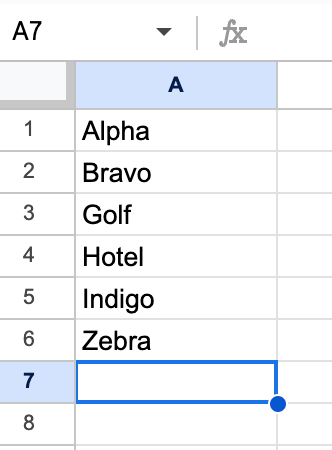
Typically when working with strings, each value in IN() is surrounded by single quotes. Nested CONCAT() function calls take care of that:
=CONCAT(CONCAT("'",Cell#),"'")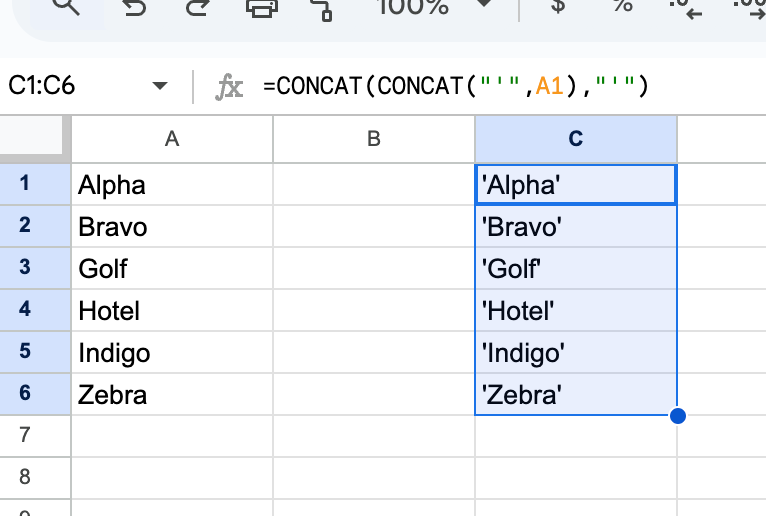
Next, I copy over just the values after dragging down the formula for all cells:
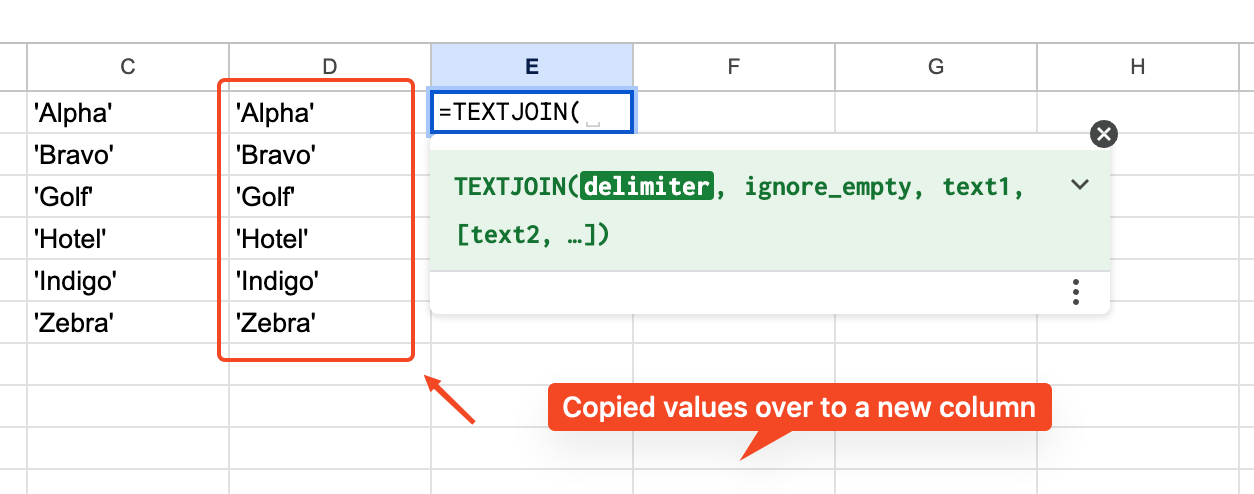
Then simply use TEXTJOIN() to form the comma-separated list of values.
TEXTJOIN() expects several arguments, but the 3 main ones we need are:
The delimiter - a comma for this example
ignore_empty- I typically useTRUEfor this type of work since I don’t necessarily want an empty string in theIN()values.Text range - in this case, I am using D1:D6
Here is the complete formula:
=TEXTJOIN(",",TRUE,D1:D6)Plug that in and we get the values for the IN() query:
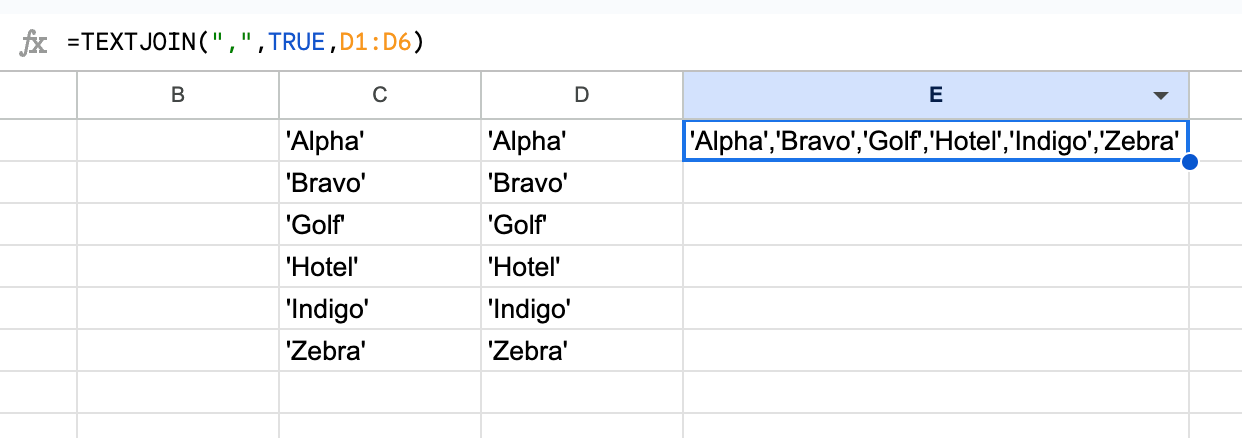
Now you can use them in an IN() query like this:
SELECT *
FROM some_table
WHERE call_sign IN('Alpha','Bravo','Golf','Hotel','Indigo','Zebra');
Handy stuff!
I hope you found this article useful. Feel free to share some of your tips and tricks for working with data.
Subscribe to the weekly OpenLampTech newsletter for more content on open source, the LAMP stack, and other technologies.
(Cover picture credits: Image by Erika Varga from Pixabay)